
How to Order Firehouse Subs Online in 2026 (Step-by-Step Guide)
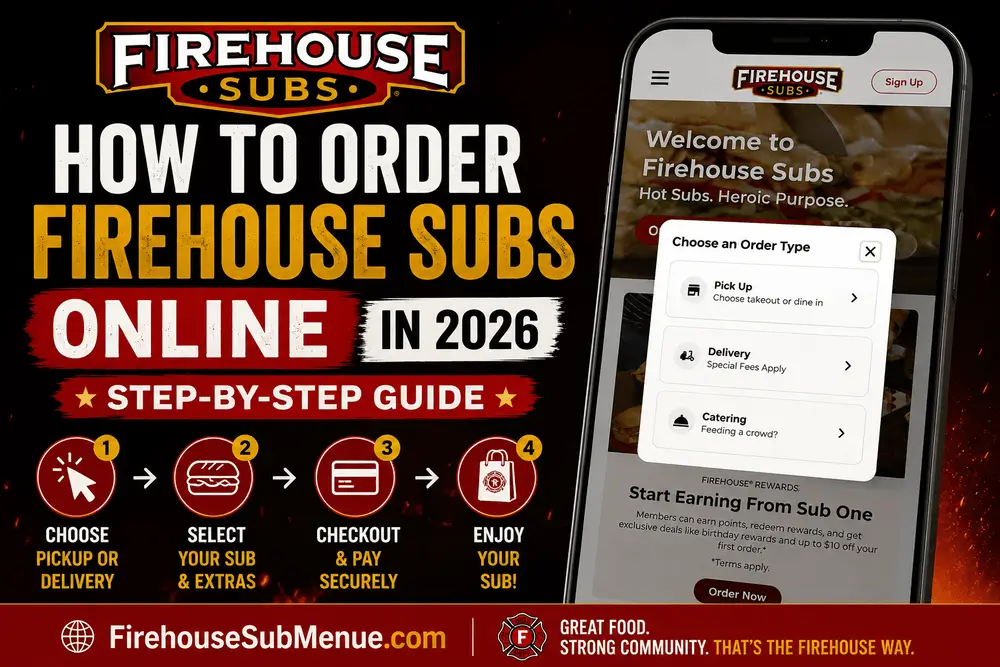

These days, most of the people prefer to order their sandwiches and fast food online. Firehouse Subs also provides easy option for its customers to order online. whether you want home delivery, or want to place a pickup order, Firehouse Subs online ordering system is very simple and user-friendly.
If you are placing online order for the first time, and wondering how to order Firehouse Subs, then this detailed guide will help you step-by-step.
Can You Order Firehouse Subs Online?
Yes, Firehouse Subs supports online ordering. You can place their orders through official website, mobile app, and third-party delivery apps. Depending on your location, you can choose any available option from pickup, curbside pickup or delivery.
Website Ordering
The most common method is to order through official Firehouse Subs website. Visit the website, then select your nearby restaurant, browse the menu, you can also do customization before placing the order, confirm and place your order by completing the payment.
Mobile Ordering
Firehouse Subs also have an official application, that makes ordering process more convinient for mobile users. App has additional features like order history, saved payment methods and rewards integration.
Delivery Availability
Delivery option is not available at all locations. Delivery availability depends on your address and nearest participating restaurant.
Catering Ordering
Catering option is also available for large orders and events, which is generally managed through EZCater platform.
How to Order Firehouse Subs Online for Pickup
Pickup orders are best for those who live nearby the restaurant, and can collect the order themselves. It will save time as well as delivery charges.
Step 1 – Visit the Official Firehouse Subs Website
First of all, open official Firehouse Subs website, which is: www.FirehouseSubs.com
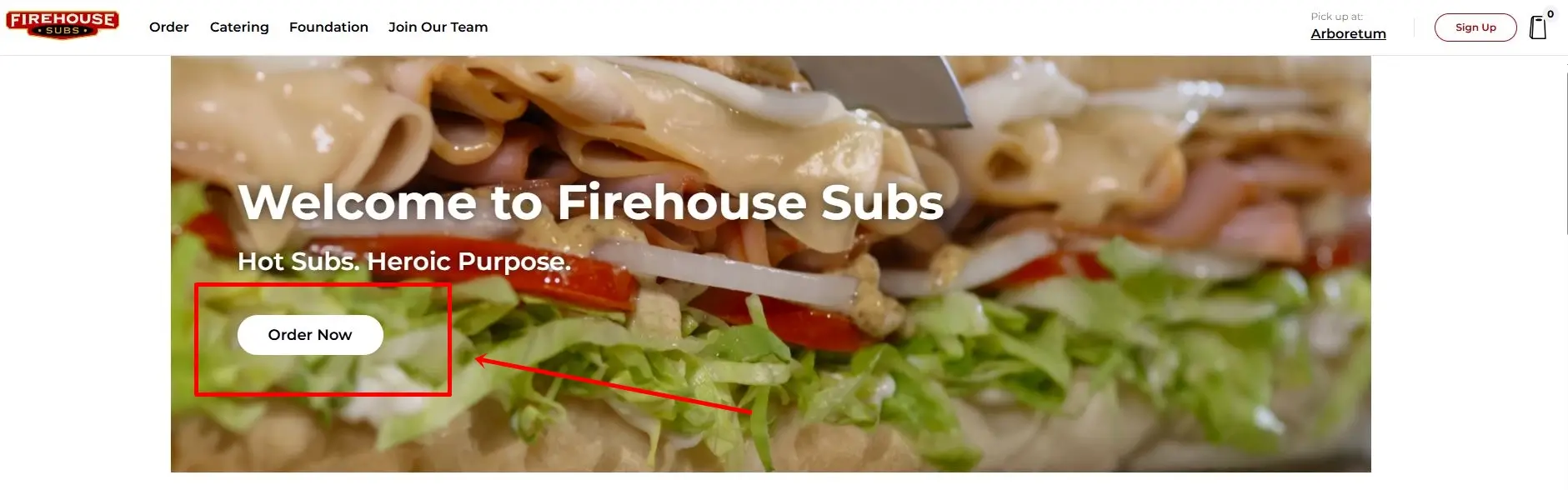
Now you will see the homepage and hero section of website, with a prominent button of “Order Now”. This button is the starting point of your online order.
Step 2 – Choose Your Ordering Method
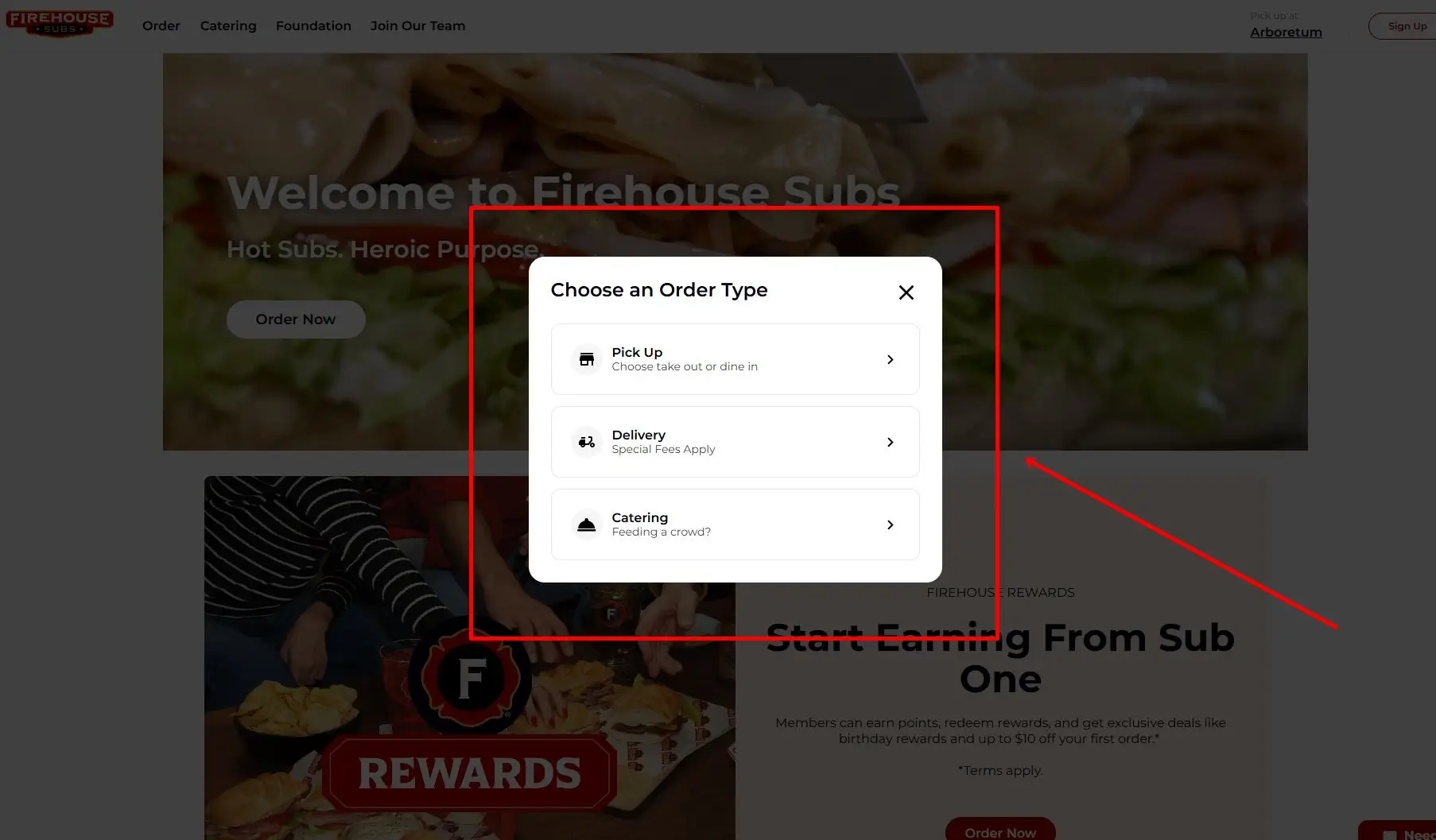
When you click on “Order Now” button, you will see a new screen with 3 options:
– Online Order
– Delivery
– Catering
Online Order
This is for standard pickup ordering. If you want to order online and will pickup the order yourself, then select this option.
Delivery
If you want the food to be delivered at your home or office, then choose delivery option.
Catering
For large group orders, office lunches, meetings and events, you can select catering option.
Many new customers select delivery or catering option by mistake rather than online order, select correct option to avoid later conflicts.
Step 3 – Select Online Order
After selecting online order, you will see a new page with complete menu items.
Here you will different categories, like:
- Featured Items
- Hot Specialty Subs
- Build Your Own Sub
- Salads
- Sides
- Drinks
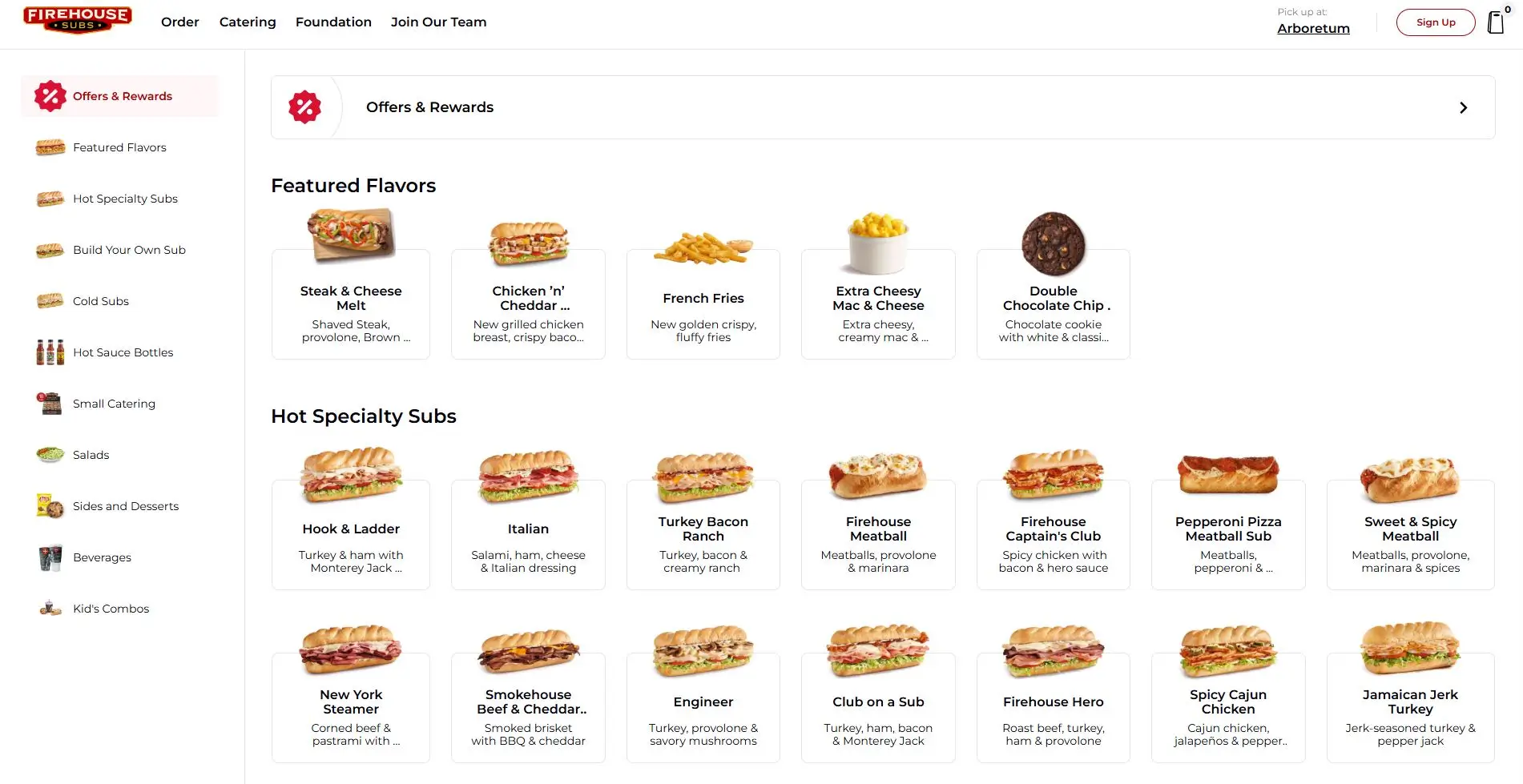
Clicking on any item will open a new screen with customization options, where you can select size, toppings, sauces and other options to customize your meal.
Also Read: How to Customize Your Firehouse Subs Order
Step 4 – Checkout and Place Your Order
Once your items are added, click on “Add to Cart” button for placing your order.
When you click on cart icon, you will see the order summary.
On this page, you can review your selected items, change quantity, remove unwanted items, and can also add additional notes.
Review your customization details before placing your order, as its not easy to make changes in order after the checkout.
Usually see these 2 options at the checkout:
– Guest Checkout
– Sign In
If you want to earn rewards and bonus points from this order, then click on sign in. If you haven’t created and account yet, then create your account, it usually takes just few minutes.
After payment completion, you will see a pickup confirmation screen with estimated pickup time and restaurant information.
How to Order Firehouse Subs Delivery
If you want to receive your meal delivered at your home or office, then you can select delivery option from main screen.
Step 1 – Choose Delivery
Select delivery option from ordering screen. You will be asked to confirm your delivery location.
Step 2 – Enter Your Delivery Address
You will see a search field to enter your full address. Enter your full address here. Also include apartment number, suite number or building information in your address, so that the delivery person can find your location easily and you can receive your meal on time.
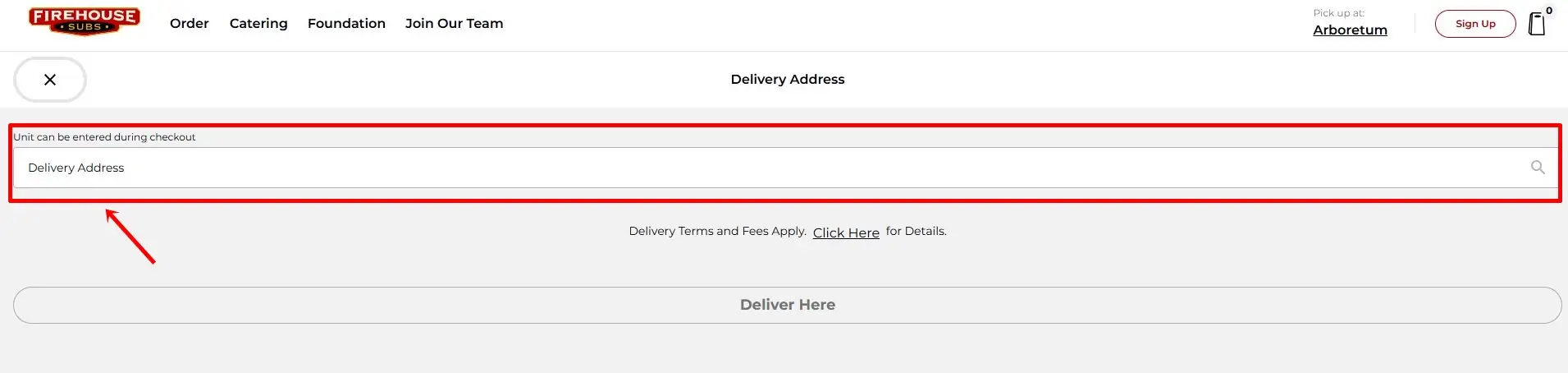
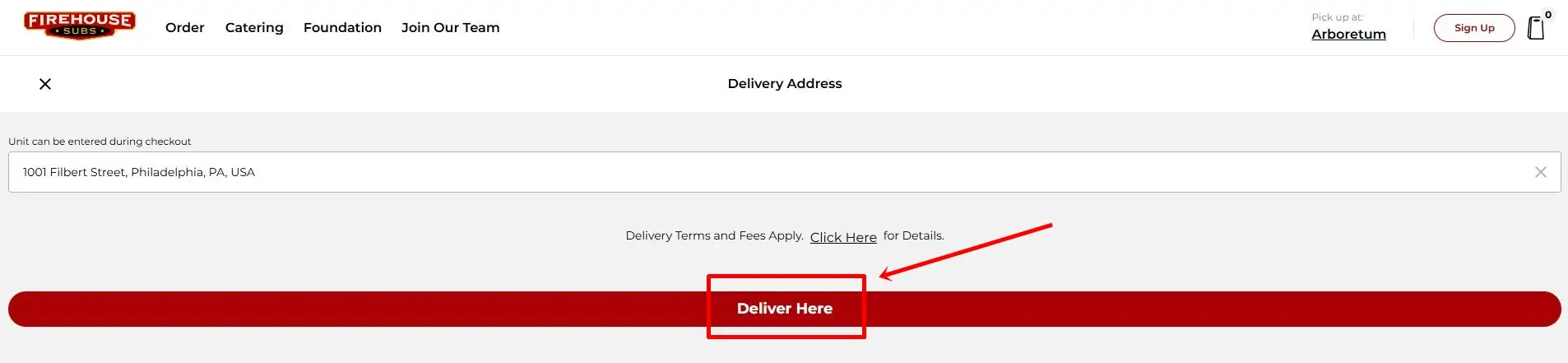
Step 3 – Click “Deliver Here”
After entering your full address, “Deliver Here” button will appear. Once you click on this button, system will search for your nearest available restaurants and will check for delivery eligibility to your location.
What Happens if Delivery Is Not Available?
In some situations, you may see this message:
“Sorry, No Delivery Restaurants Nearby”
or
“No stores found within 20 miles of your address”
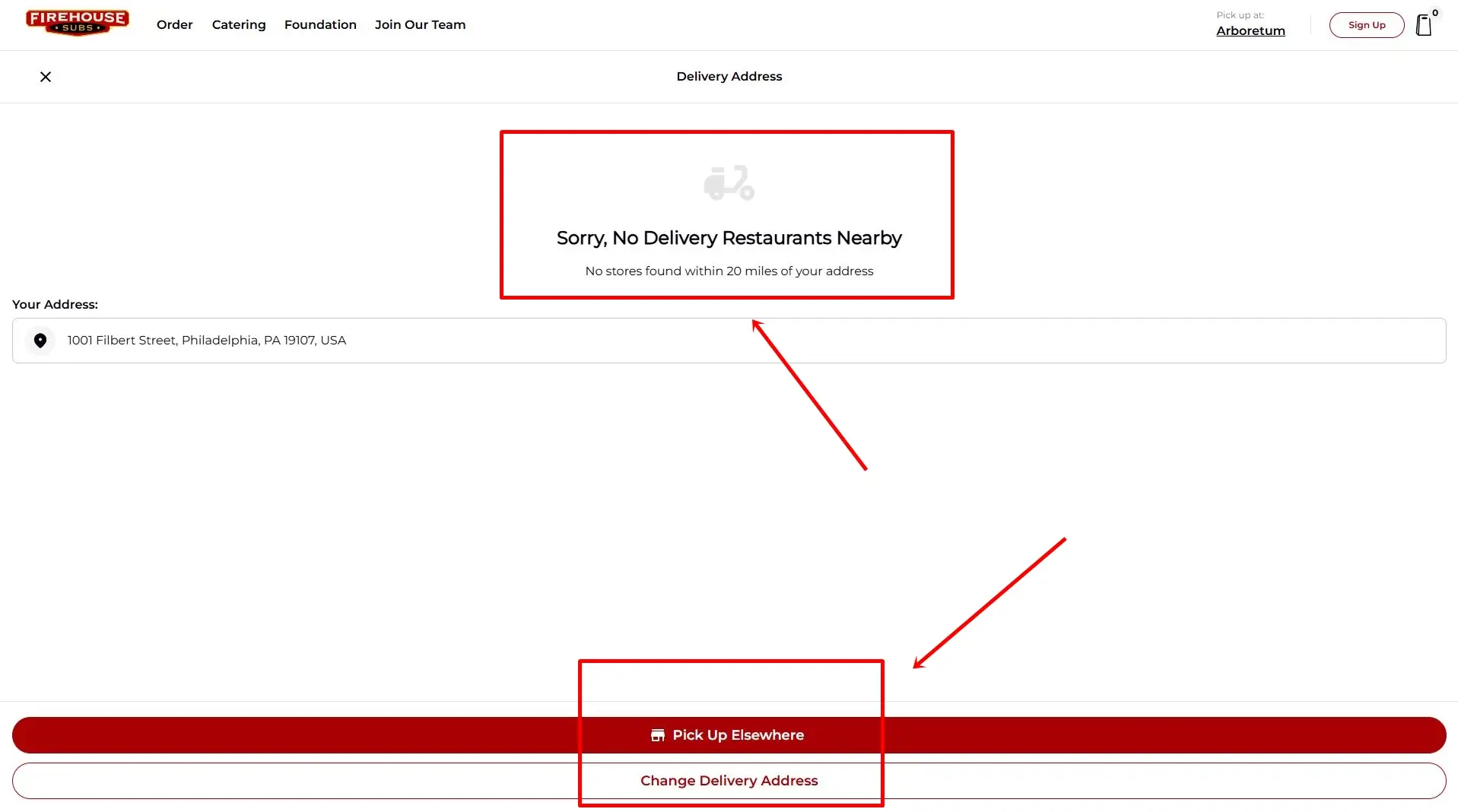
This can be due to any of the following reasons:
- Your given address is outside the delivery zone
- Your address falls in rural location
- There is no participating restaurant available nearby
- There are some temporary delivery limitations going on
In such situations, pickup order can be the best alternative for you.
What Happens if Delivery Is Available?
If delivery is available for your provided location, then you will see a complete menu screen.
Just like in pickup order, now you will select items, review your cart, complete the payment and then you will receive order confirmation. Once the order is placed, you will see order tracking and order status.
How to Order Firehouse Subs Catering Online
Catering order is ideal for situations where the meal is to be ordered for multiple people.
Step 1 – Choose Catering
Select “Catering” from main ordering screen.
Step 2 – Redirect to EZCater
Once you select catering, you will be redirected to EZCater platform.
Firehouse Subs officially uses EZCater for efficiently managing catering orders.
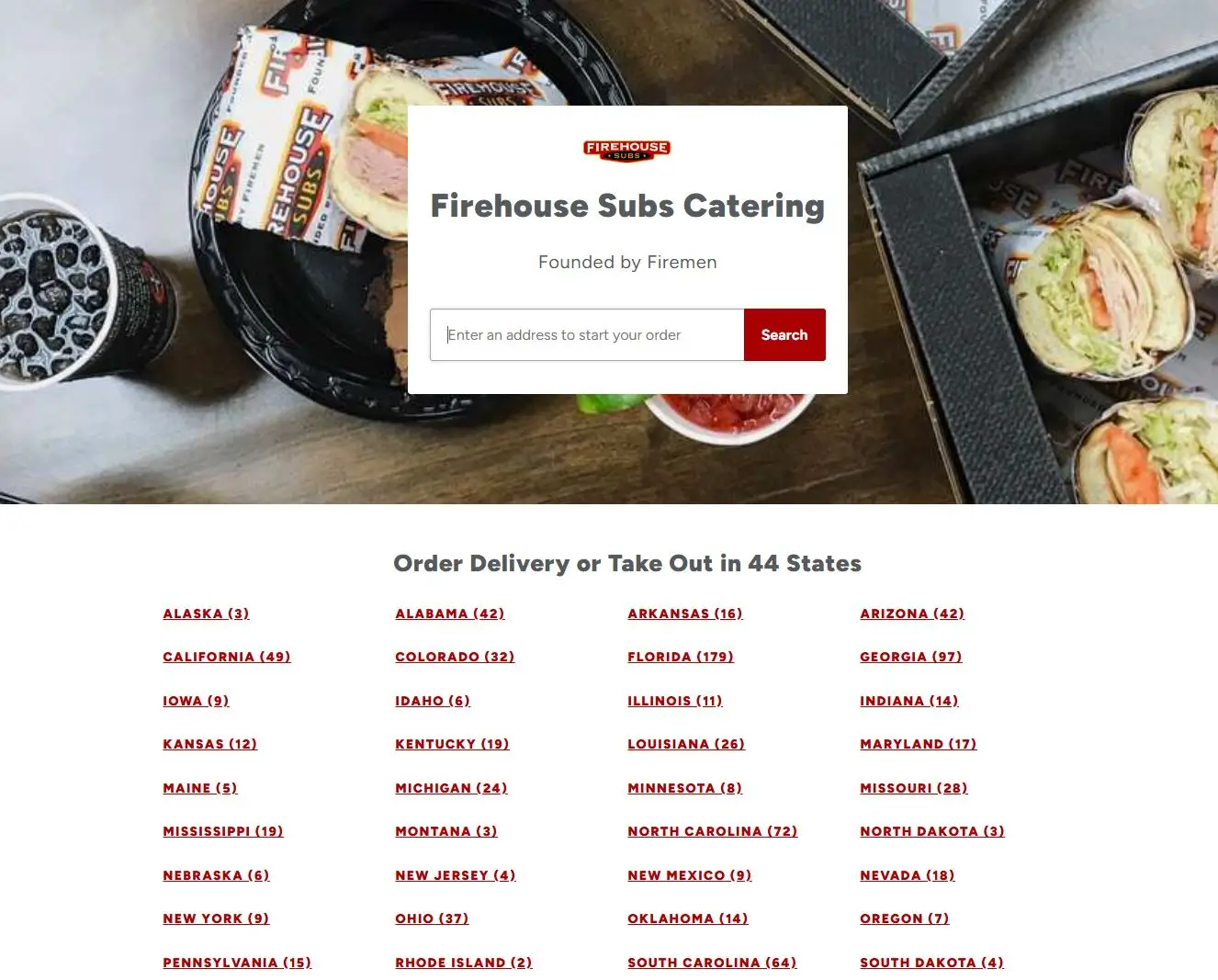
Step 3 – Select Your State
In EZCater platform, you will first see states page, where all states will be listed. Select your state so you can proceed.
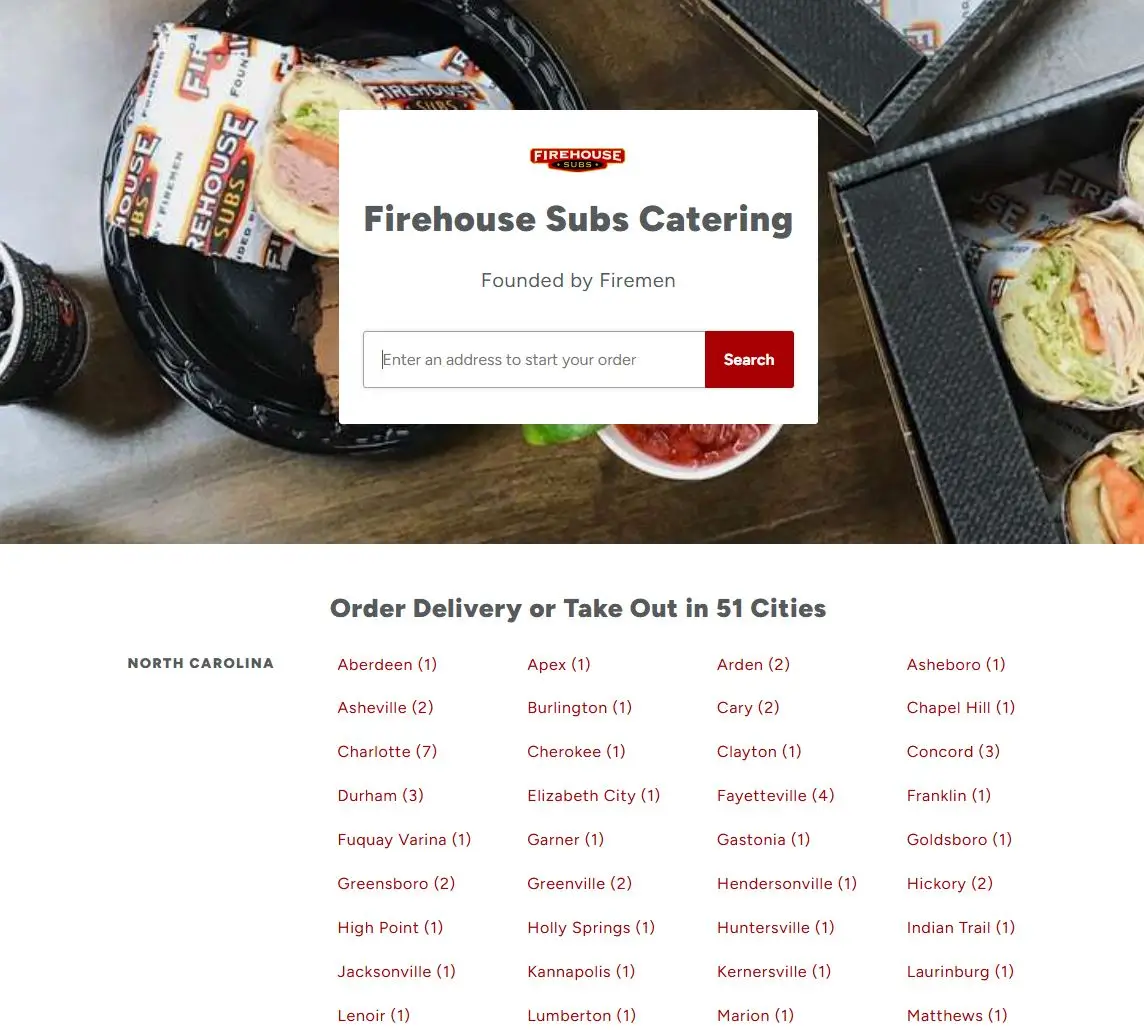
Step 4 – Select Your City
After you select you state, now you will list of all cities in that state. Select your city and browse available catering locations.
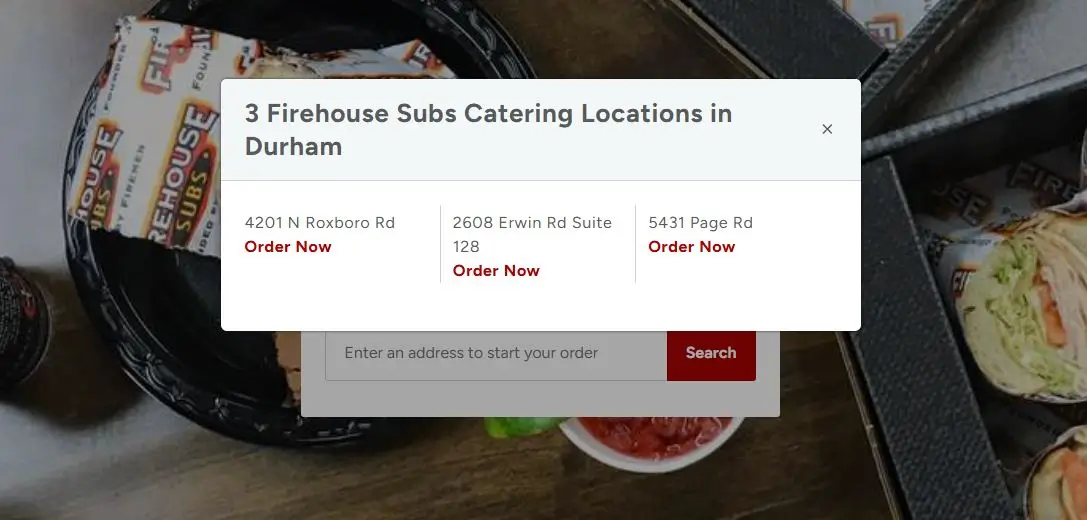
Step 5 – Select Your Nearby Restaurant For Catering Order
You will see a list of all available nearby Firehouse Subs restaurants in your city, select the nearest one.
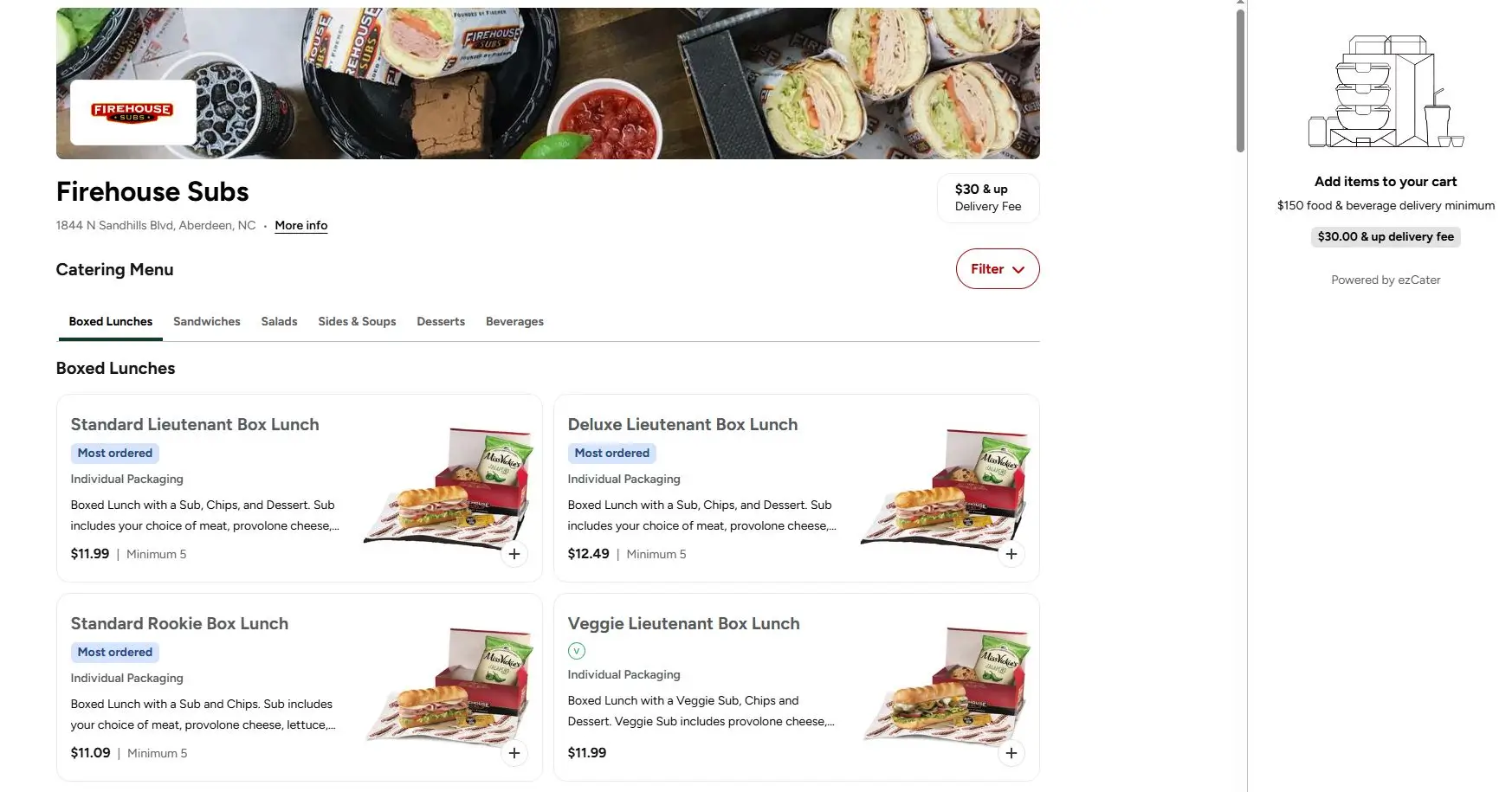
Step 6 – Browse the Catering Menu
Usually you will see these categories in catering menu.
Box Lunches:
It is suitable for individual meals.
Sandwich Platters:
It is a popular choice for meetings and group lunches.
Salads:
Its a lighter meal option.
Sides:
These are add-on items along with main meals.
Desserts:
Sweet option for group events.
Beverages:
Drinks options for large gatherings.
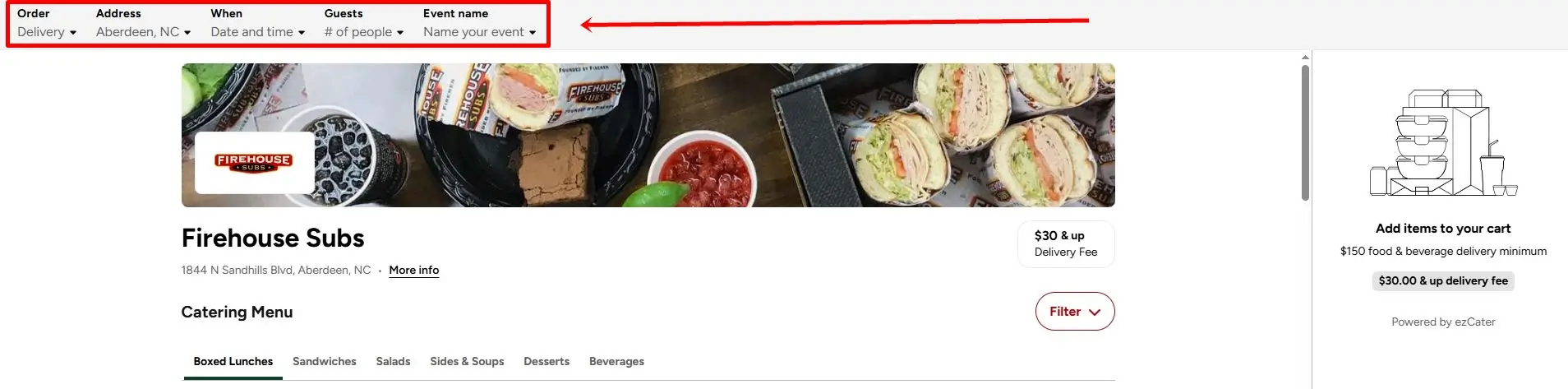
Step 6 – Place the Catering Order
Usually you have to provide following information when placing the catering order:
- Guest count
- Event date
- Event Name
- Delivery details
- Scheduling preferences
- Payment information
Upon confirmation, your catering order gets scheduled successfully.
Can You Order Through the Firehouse Subs App?
Yes. App users gets very convinient experience. App users gets major benefits like fast mobile ordering, saved payment methods, rewards integration, order history, reordering previous purchases, account management, and more.
For regular customers, app is way more convenient then website.
Payment Methods Accepted for Online Orders
Payment methods may vary according to location and restaurant. Common available options are credit cards, debit cards, mobile payments, and Firehouse Gift Cards.
Its always safe to verify available payment options before proceeding to checkout.
How to Earn Rewards When Ordering Online
Firehouse Rewards program provides additional value for online customers, such as points earning, bonus promotions, birthday rewards, reward redemption opportunities, and more.
If you are a frequent Firehouse Subs customer, than creating your rewards account is definitely recommended. You can earn points for each ordered item, and can redeem those points later in your next order.
Common Online Ordering Problems and Solutions
When placing your order, you may experience some glitches or issues, such as:
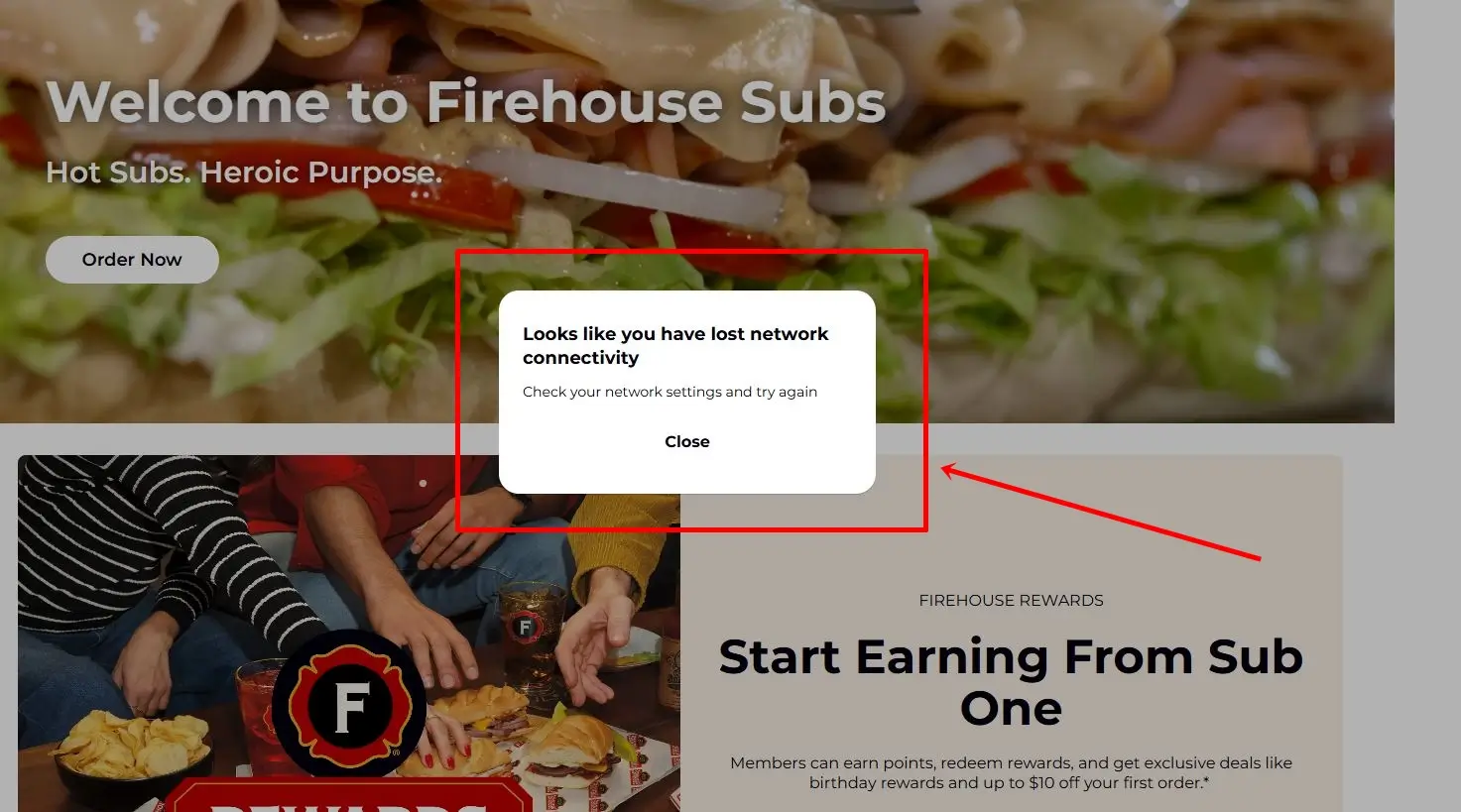
Website Not Loading
If this happens, refresh your browser, clear your browser cache, or use a different browser. Also check your internet connection.
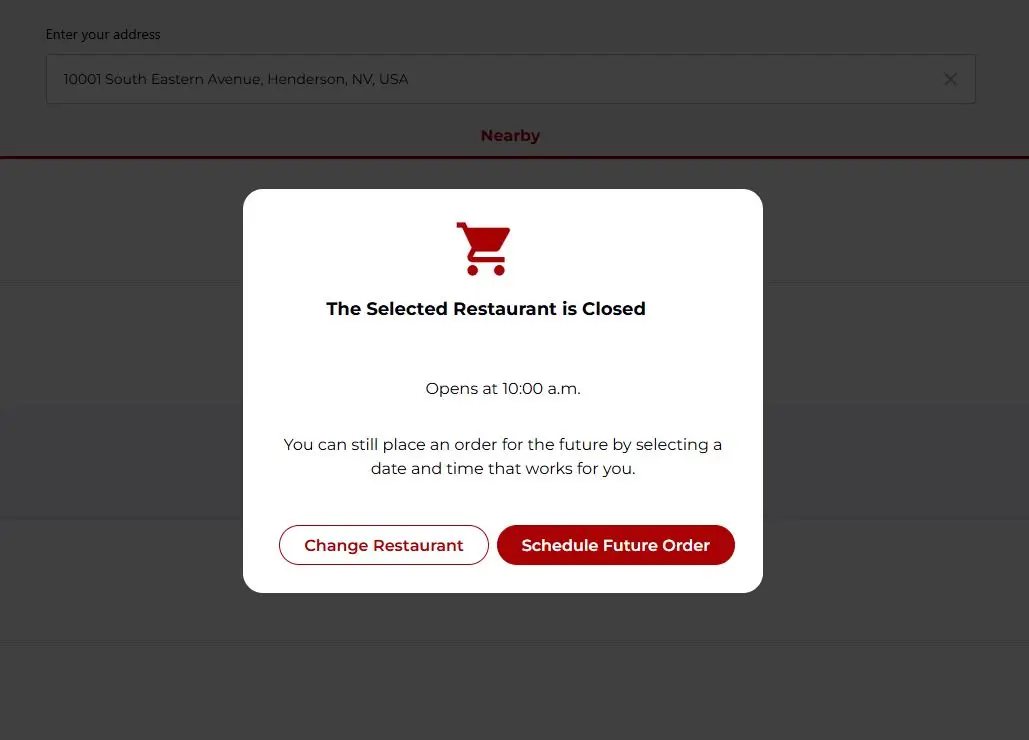
Restaurant Not Available
To solve this, search for some nearby location, make sure you’ve entered correct ZIP code. Also verify the working hours of your local restaurant location.
Delivery Not Available
To solve this, choose pickup option, enter some alternate address, or select some other participating nearby restaurant location.
Payment Failed
If your payment is declined, then verify your card details. Also check if there is sufficient balance available. If this doesn’t work, then use some alternative payment method.
Catering Page Not Opening
If catering page is not opening, or redirection is taking too long, then refresh your browser and clear cache, or use different browser If this doesn’t work, then visit this EZCater webpage of Firehouse Subs directly and then follow all steps as regular.
Tips for a Better Online Ordering Experience
- Always check the working hours of your nearest location
- Carefully verify the delivery address you are providing.
- Create your rewards account first before placing the order
- Always review your customization before confirming your order. It becomes very difficult to make changes once the order is placed.
- Double-check your cart and total amount before checkout.
- Always schedule the catering orders in advance, as it takes longer than usual orders.
- Save your favorite orders in app to save time for the future order.
Final Thoughts
Firehouse Subs has made the online ordering process very simple. Pickup option is usually convenient for individual customers, whereas if you want to receive meal at home or office, then you can order with online delivery. Catering orders are ideal for office lunches, meetings and large events.
If you are ordering at Firehouse Subs for the first time, then starting a pickup order is usually the easiest option. With this, you can explore full menu, customize your meal, and can save your orders for future reference.
FAQs
1. How long does Firehouse Subs pickup take?
Pickup timing depends on location, restaurant workload and the order size. You will see estimated pickup time on the confirmation screen.
2. Does Firehouse Subs charge delivery fees?
Yes. Delivery fees may vary depending on location and delivery provider. You will see delivery charges on checkout page.
3. Is there a minimum order amount for delivery?
Minimum order requirements can be different as per location. You will see minimum order requirements on checkout page.
4. Can I schedule an order in advance?
Yes many locations support future scheduling. If the restaurant is closed, they shows future order scheduling option so you can place order now, and restaurant will receive it when it opens.
5. How do I modify an online order?
If the order hasnt proceeded in preparation step, then you can contact directly that specific location, and ask them for the desired changes. But if the order has reached the preparation step, then it will be difficult to mak any changes.
6. Can I cancel an online order?
If you’ve just placed an order and want to cancel within minutes, then it can be possible, depending on the location.
7. Does Firehouse Subs accept gift cards online?
Yes, most of the locations supports online gift card payments.
8. Can I earn rewards on delivery orders?
Rewards eligibility depends on order channel and participating location.
9. Is catering available at every location?
No. Catering availability depends on participating locations and local service coverage.